
Meshbar: Tailnet Monitor
Your tailnet, from the Mac menu bar.
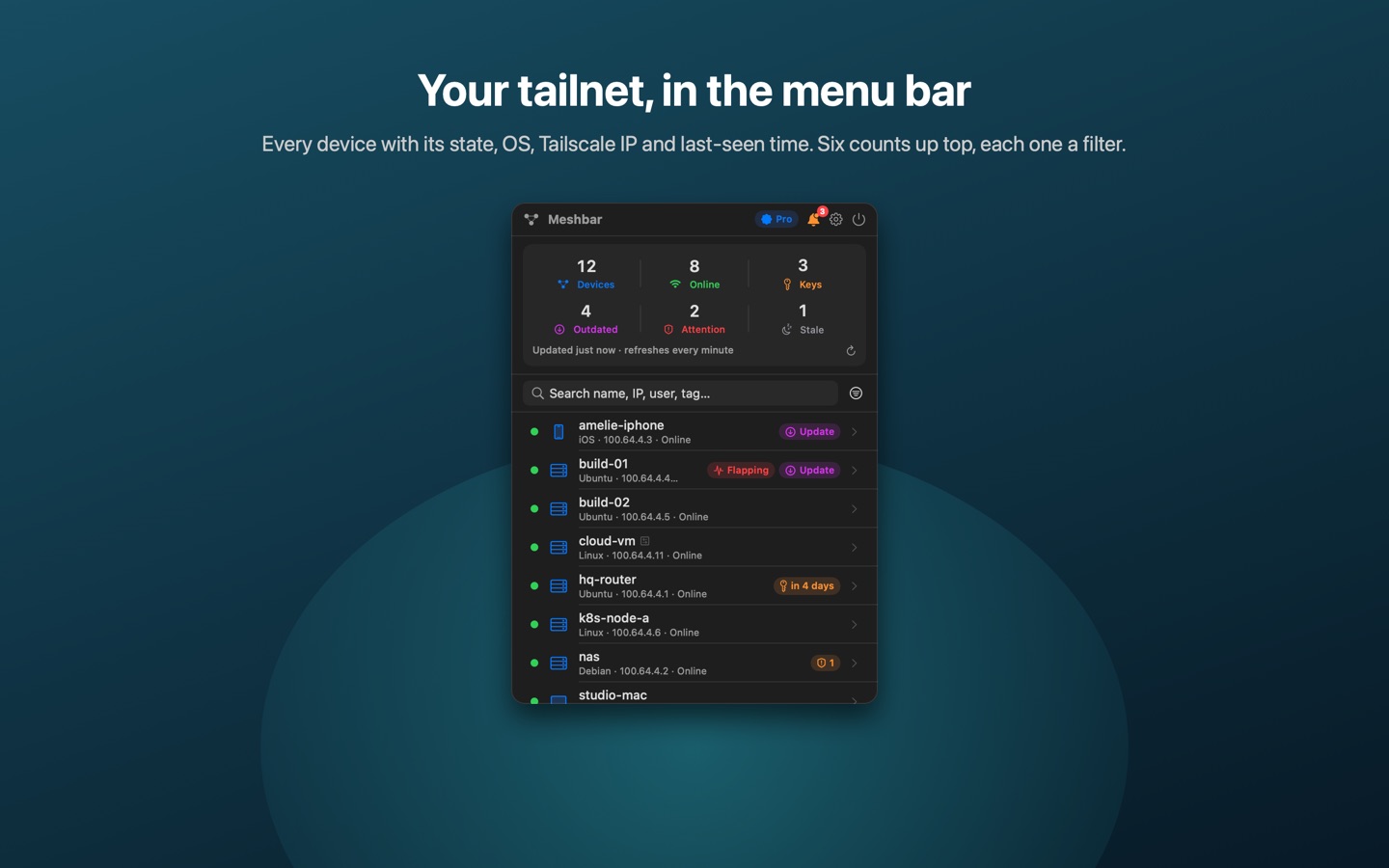
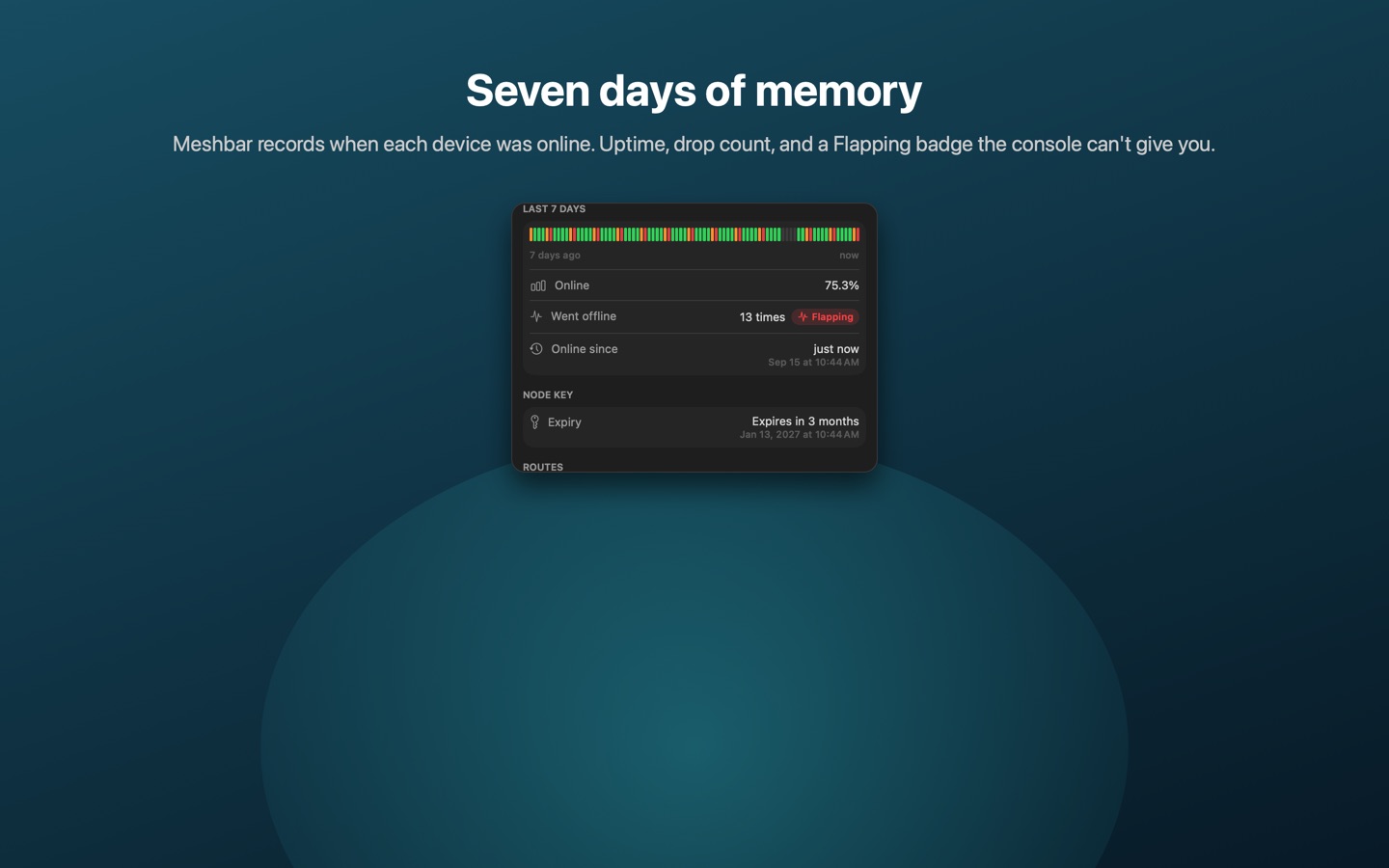
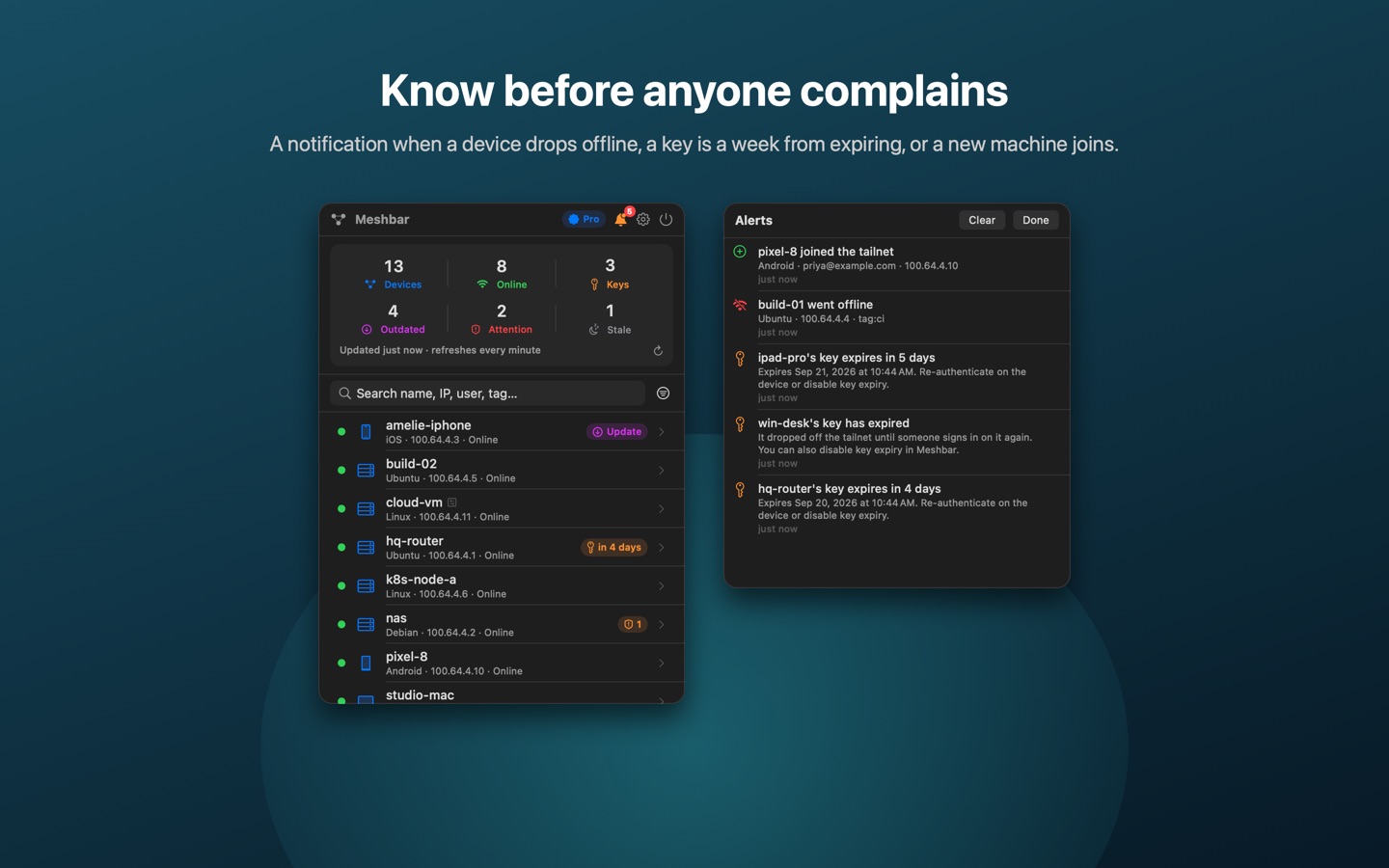
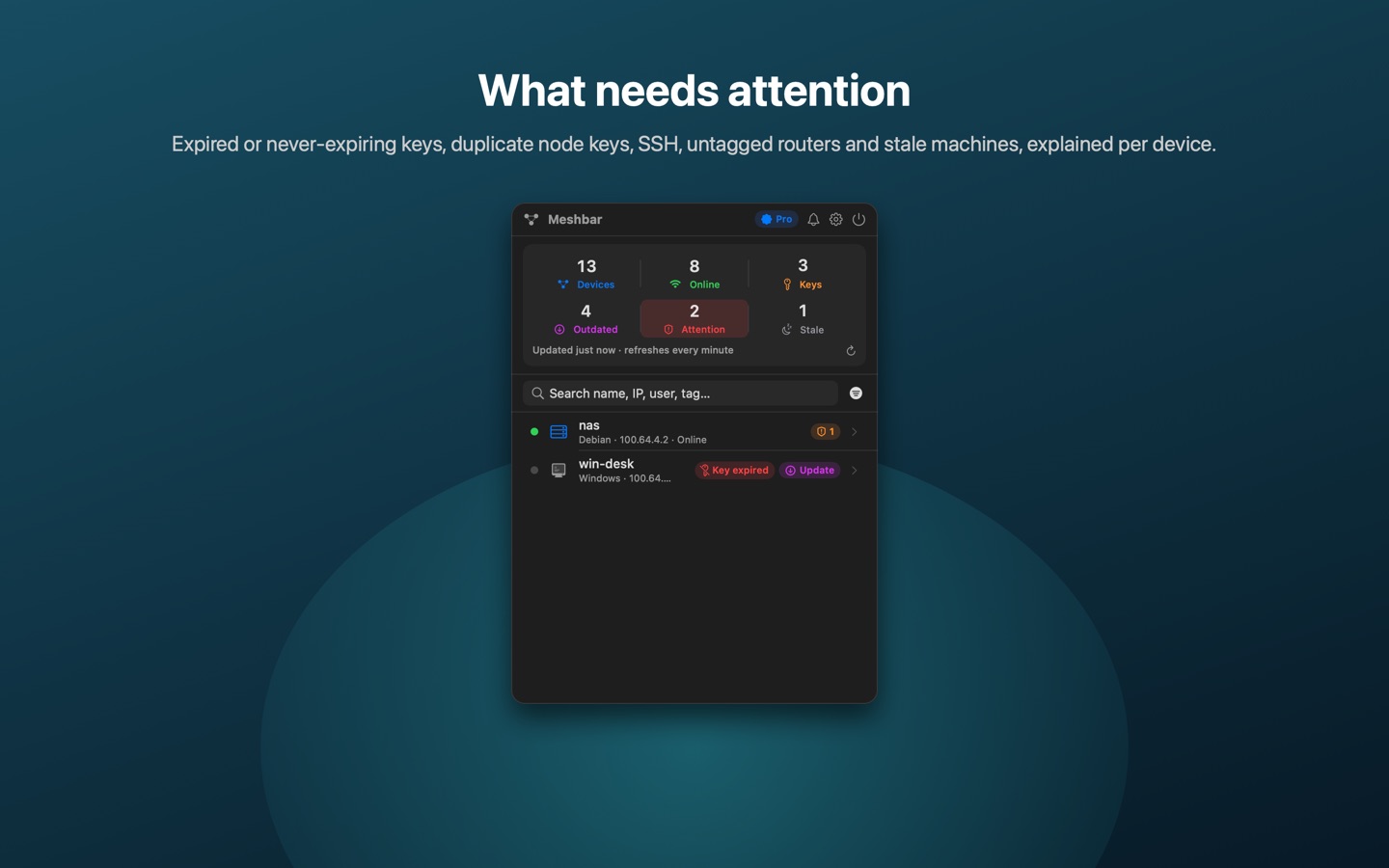
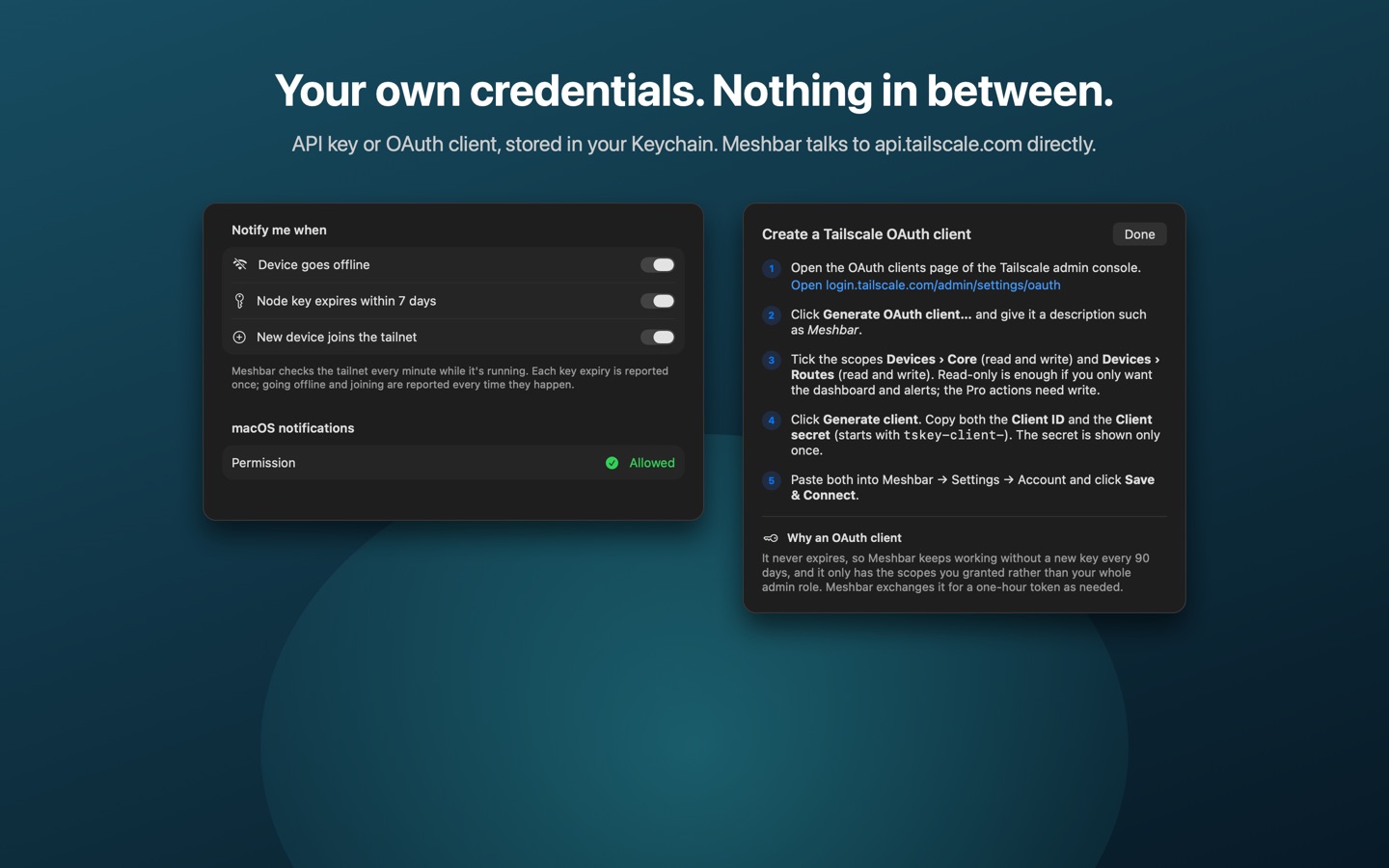
The Tailscale admin console is where you configure a tailnet. Meshbar is where you watch it. It checks your tailnet every minute, keeps the number of online devices in the menu bar, and sends a macOS notification a week before any node key expires, the moment a device drops offline, or when a new machine joins.
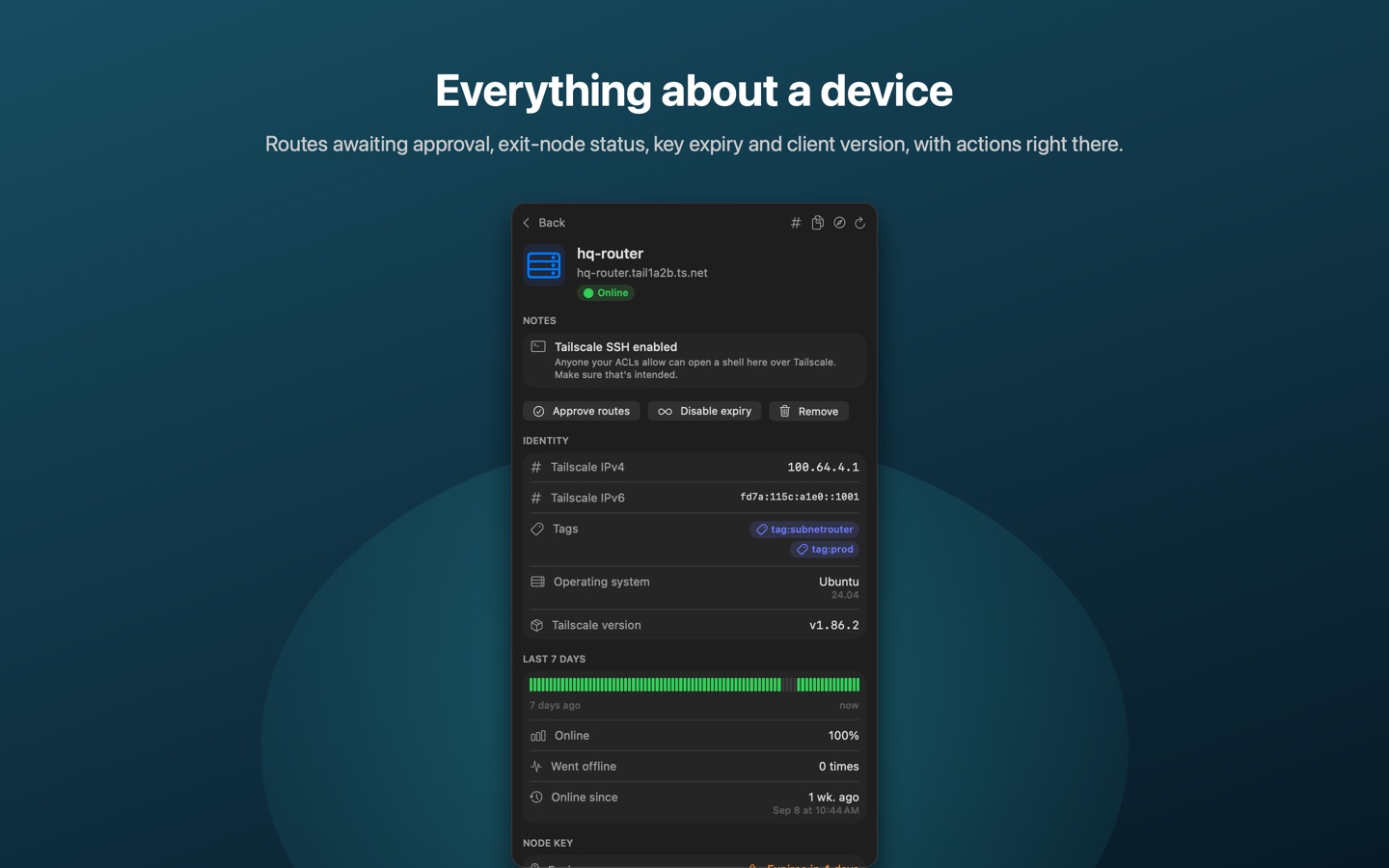
Click the icon for every device with its connection state, OS, Tailscale IP and last-seen time. Drill in for user or tags, client version, key expiry, subnet routes and exit-node status.
- Search across name, IP, user, tag, OS and version; sort by status, name, last seen, OS, key expiry or owner
- Dashboard: total devices, online, keys expiring within 7 days, outdated clients
- Free: device list, details, dashboard, copy IP and hostname, open in the admin console
- Pro: alerts, approve routes, disable key expiry, remove device
- Uses an API access key you create. Meshbar talks to Tailscale's API directly; no third-party server ever sees your tailnet.
Free to use. Pro is a one-time purchase after a 7-day trial. No subscription.
Setup
Meshbar needs a Tailscale API access key. The app walks you through it (Settings → Account → "How do I create an API access key?"). In short: open the Keys page of the Tailscale admin console, generate an access token, and paste it into Meshbar.
The key inherits your role, so listing devices works for any member; approving routes, changing key expiry and removing devices need an Owner, Admin, IT admin or Network admin.
Support
Please include your macOS version and, for connection problems, the exact error text shown in Settings → Account.
Guides
Meshbar is not affiliated with or endorsed by Tailscale Inc. Tailscale is a trademark of Tailscale Inc.