
Jobbar: Background Job Monitor
Know when a background job on your Mac fails or stops running.
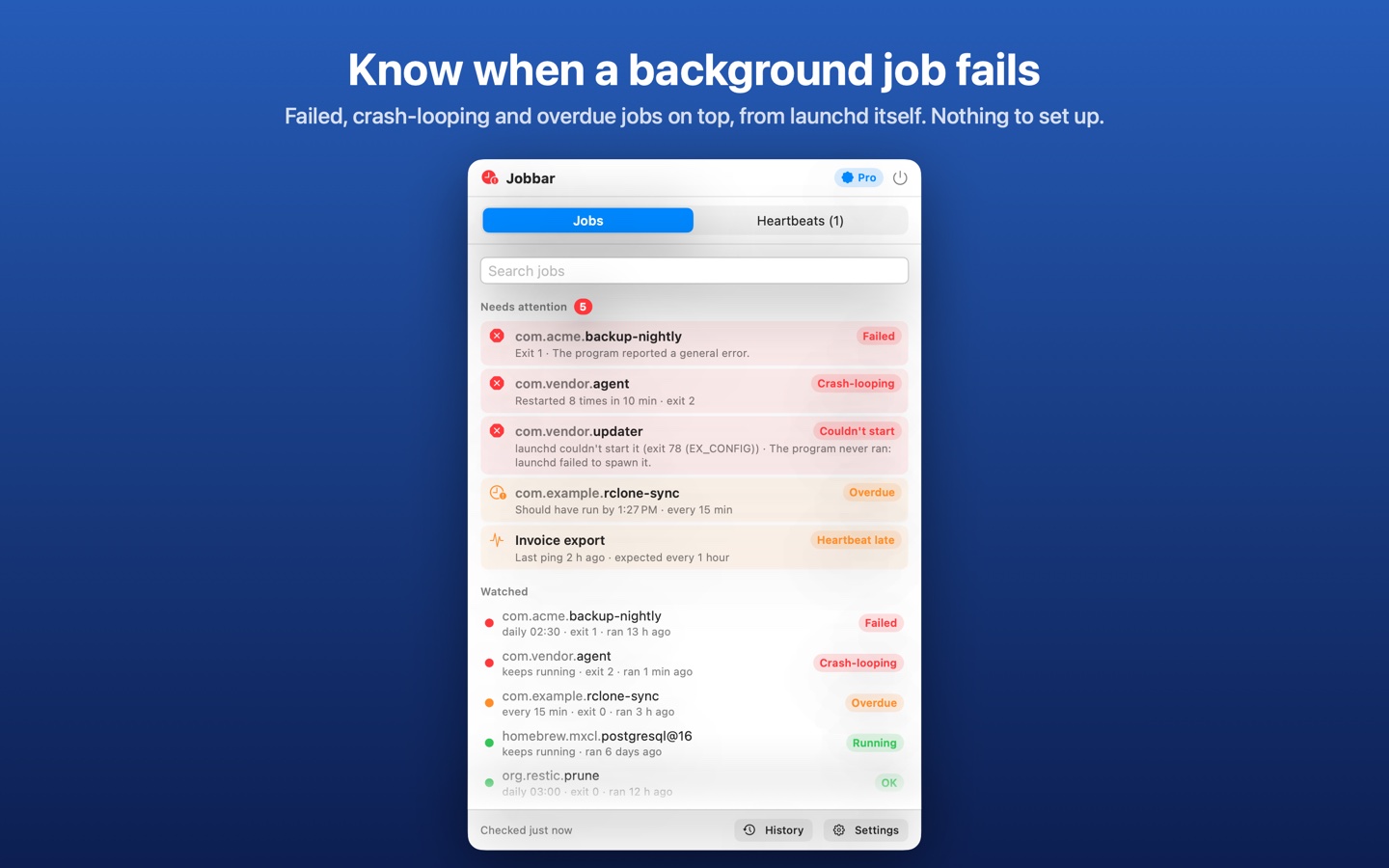
A backup script exits with an error at 3 a.m. A sync job that ran every fifteen minutes for months quietly stops. A vendor's agent crashes and restarts all morning. macOS doesn't mention any of it. Jobbar sits in your Mac's menu bar, reads launchd's status of every job once a minute, and turns red when one fails, crash-loops or misses its schedule, with the reason in plain words.
It's built for developers with local services, backup and sync scripts and LaunchAgents they wrote once and forgot; for IT admins and MSP technicians checking the agents installed on a Mac; and for anyone whose automation only gets noticed when its output goes missing.
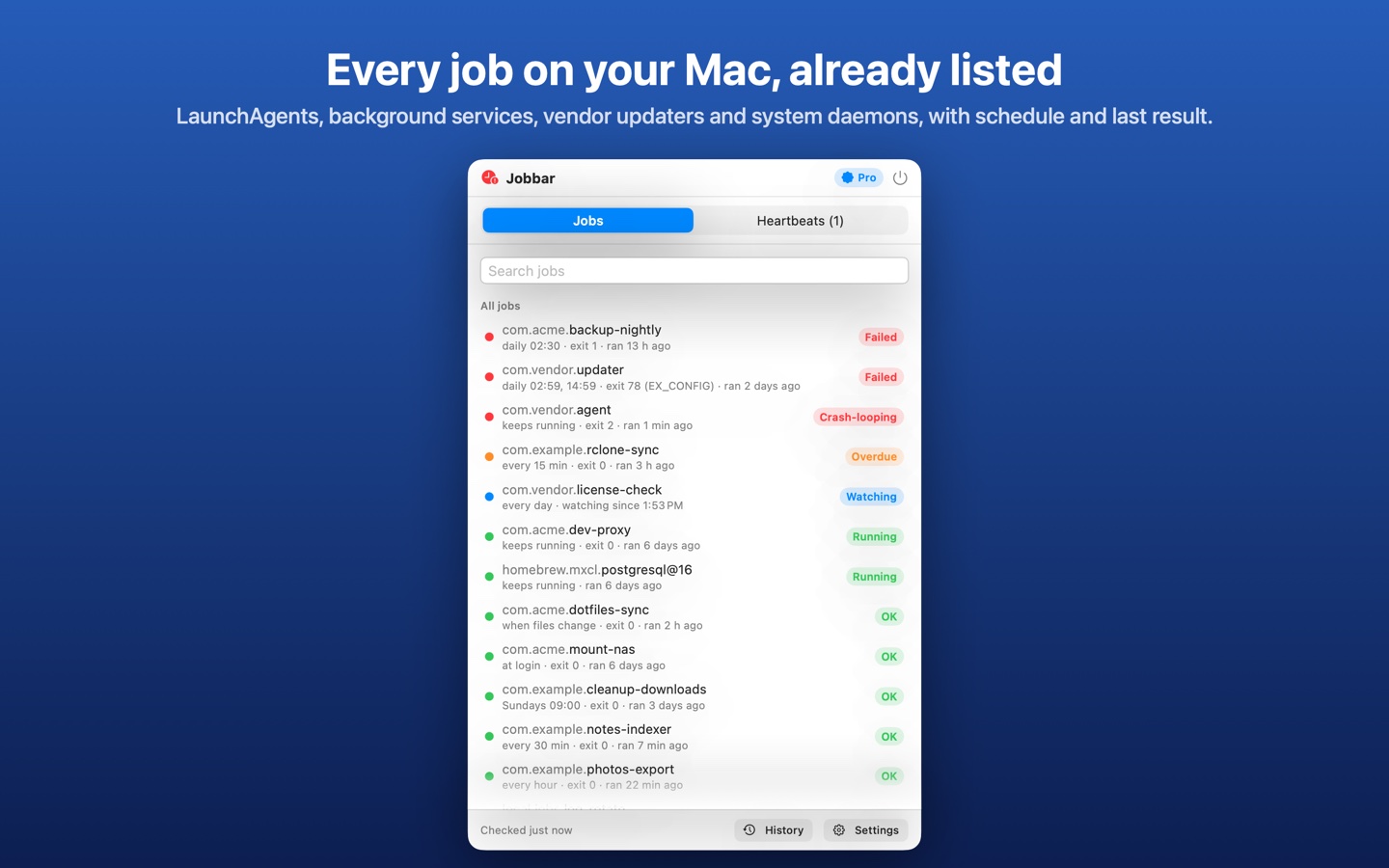
- Every launchd job listed with no setup: your LaunchAgents, background services, vendor updaters and (Pro) system daemons
- Schedule in words (every 5 min, daily 03:00, keeps running, on demand), last result and status for each job
- Flags failed jobs, signals, jobs launchd can't start, crash-looping keep-alive services, overdue scheduled jobs and watched jobs that disappear
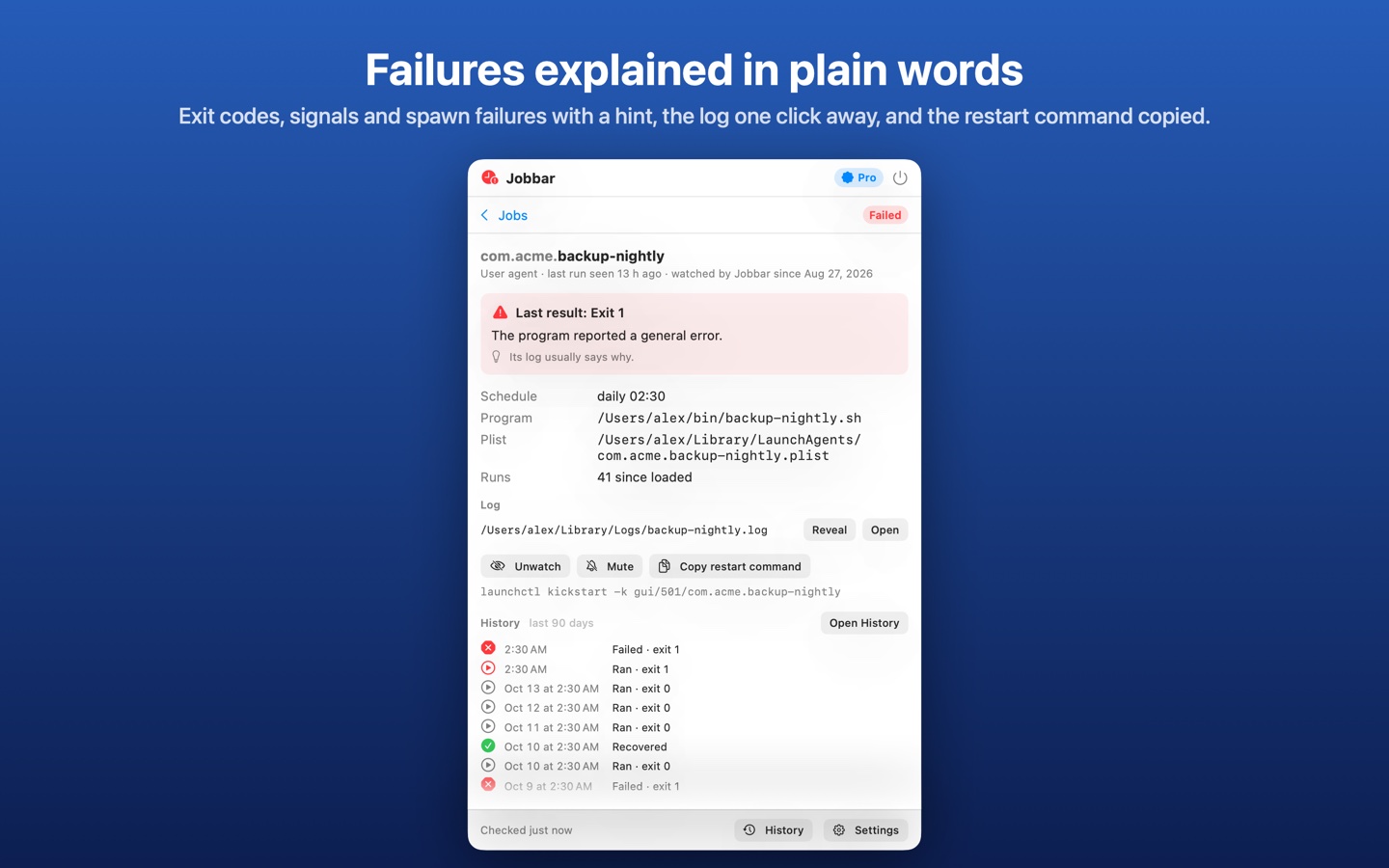
- Exit codes, sysexits and signals explained in plain words, with a hint about where to look
- Program, plist, arguments and log files with Reveal in Finder and Open log; Copy restart command puts the launchctl line on your clipboard
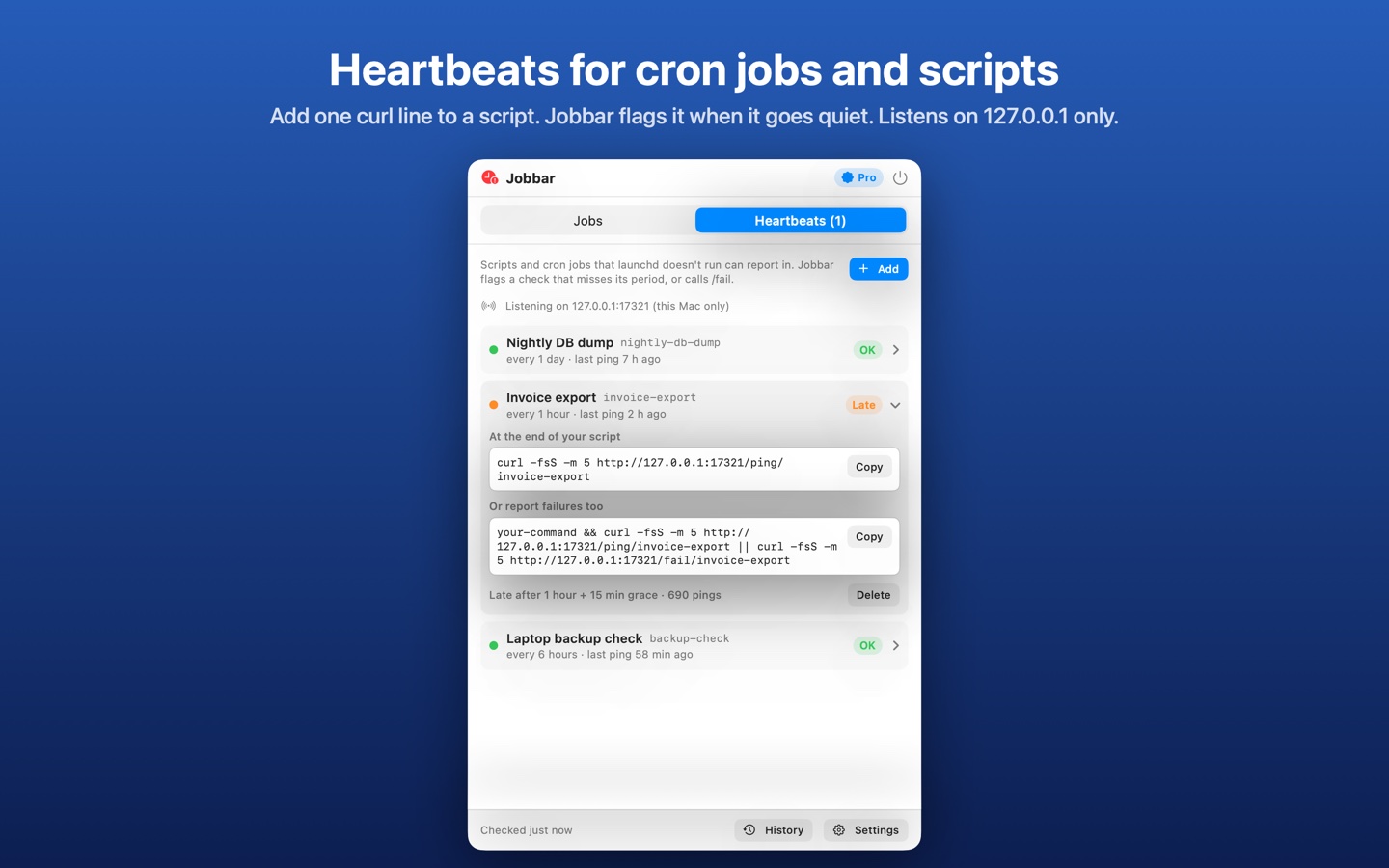
- Heartbeats for cron jobs and scripts: one curl line to 127.0.0.1, flagged when it goes quiet or reports a failure
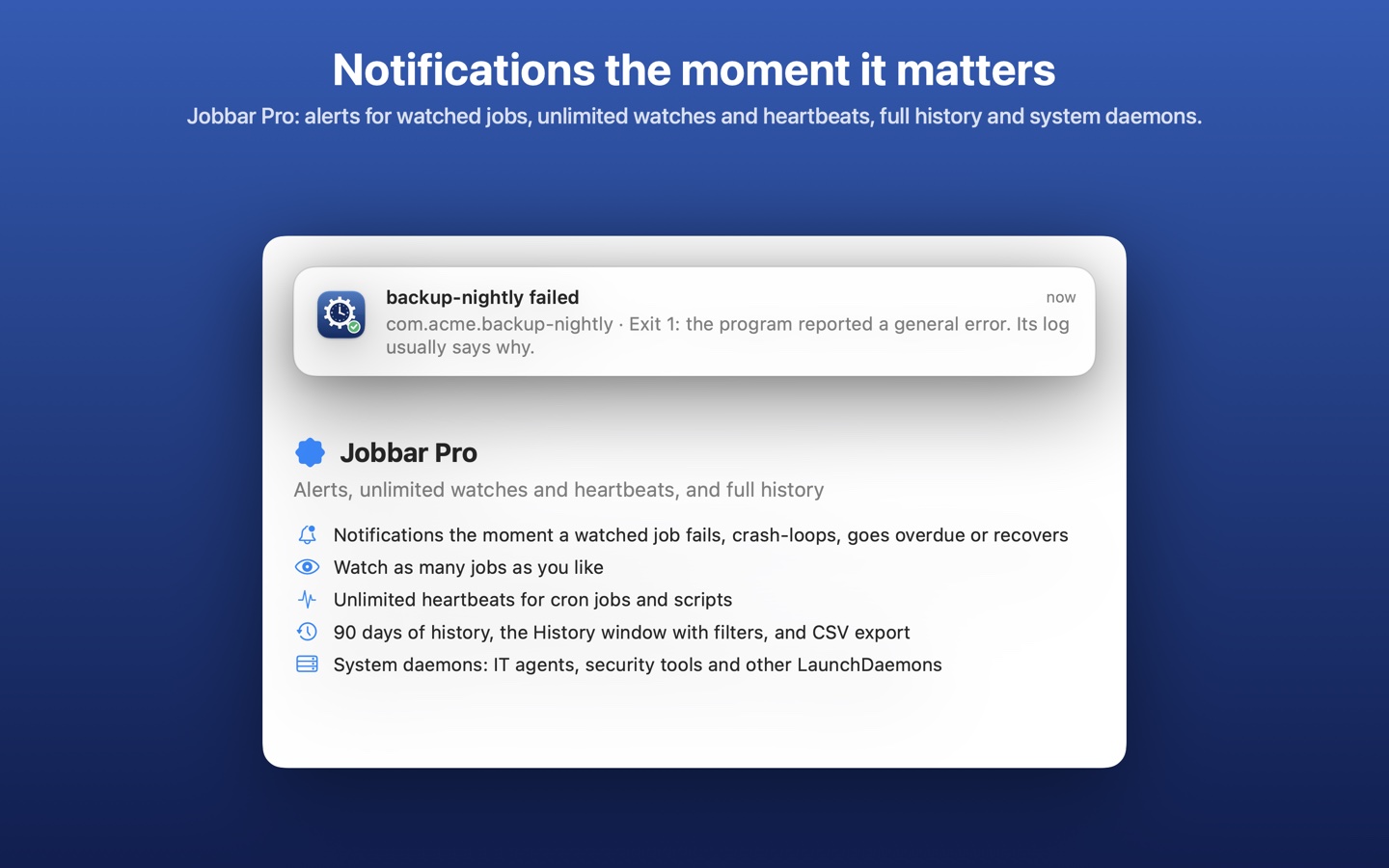
- Pro: notifications when a watched job fails, crash-loops, goes overdue or recovers, never on every run
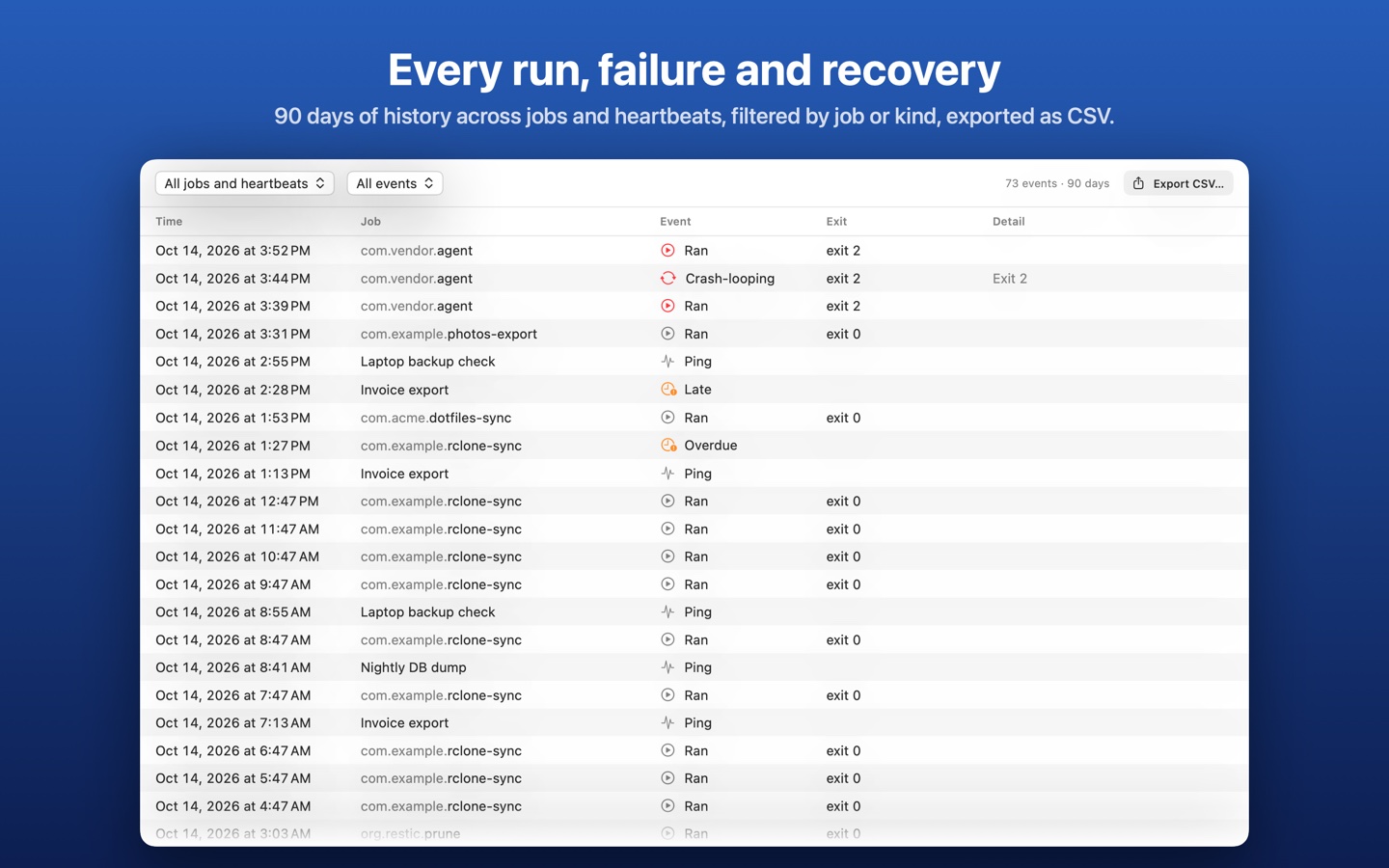
- Pro: unlimited watched jobs and heartbeats, 90 days of history with filters and CSV export, and system daemons
- Read-only and private: Jobbar never changes a job. No account, no server, no analytics.
Free to see every job's health, with 3 watched jobs and 1 heartbeat. Jobbar Pro is $1.99/month or $5.99/year with a two-week free trial, or $12.99 once for Lifetime.
Getting started
Open Jobbar, click Continue on the welcome window, then click the clock in the menu bar. Every job is already there; anything that needs attention is on top. Open a job and choose Watch to keep it in the Watched list (3 jobs free, unlimited with Pro).
For a cron job or script, open Heartbeats, click Add, and paste the line it shows at the end of your script, for example curl -fsS -m 5 http://127.0.0.1:17321/ping/nightly-db-dump. Jobbar only sees runs while it's running, so leave "Open Jobbar when I log in" on. Want to look around first? Turn on Settings → General → Show sample data.
Common questions
- Does Jobbar start, stop or change my jobs?
- No. It only reads launchd's status with launchctl print. Copy restart command puts a launchctl kickstart command on your clipboard for you to run if you choose.
- Why does a job say "watching since" instead of when it last ran?
- launchd keeps a run count, not run times. Jobbar records the time whenever the count goes up, so right after you install it, it only knows runs it has seen. It still flags a scheduled job that misses its next run.
- What about cron?
- macOS sandboxed apps can't read crontabs, so cron jobs report in with a heartbeat: add one curl line to the job. The same works for any script, wherever it's started.
- Can other computers reach the heartbeat listener?
- No. It listens on 127.0.0.1 only (port 17321 by default, changeable in Settings), which is reachable from your own Mac and nothing else.
Support
Please include your macOS version and, for a wrong status, the job's label and what launchctl print shows for it.