

Linkbar: Network Monitor
Know whether it's your Wi-Fi, your ISP or the internet — and have the proof.
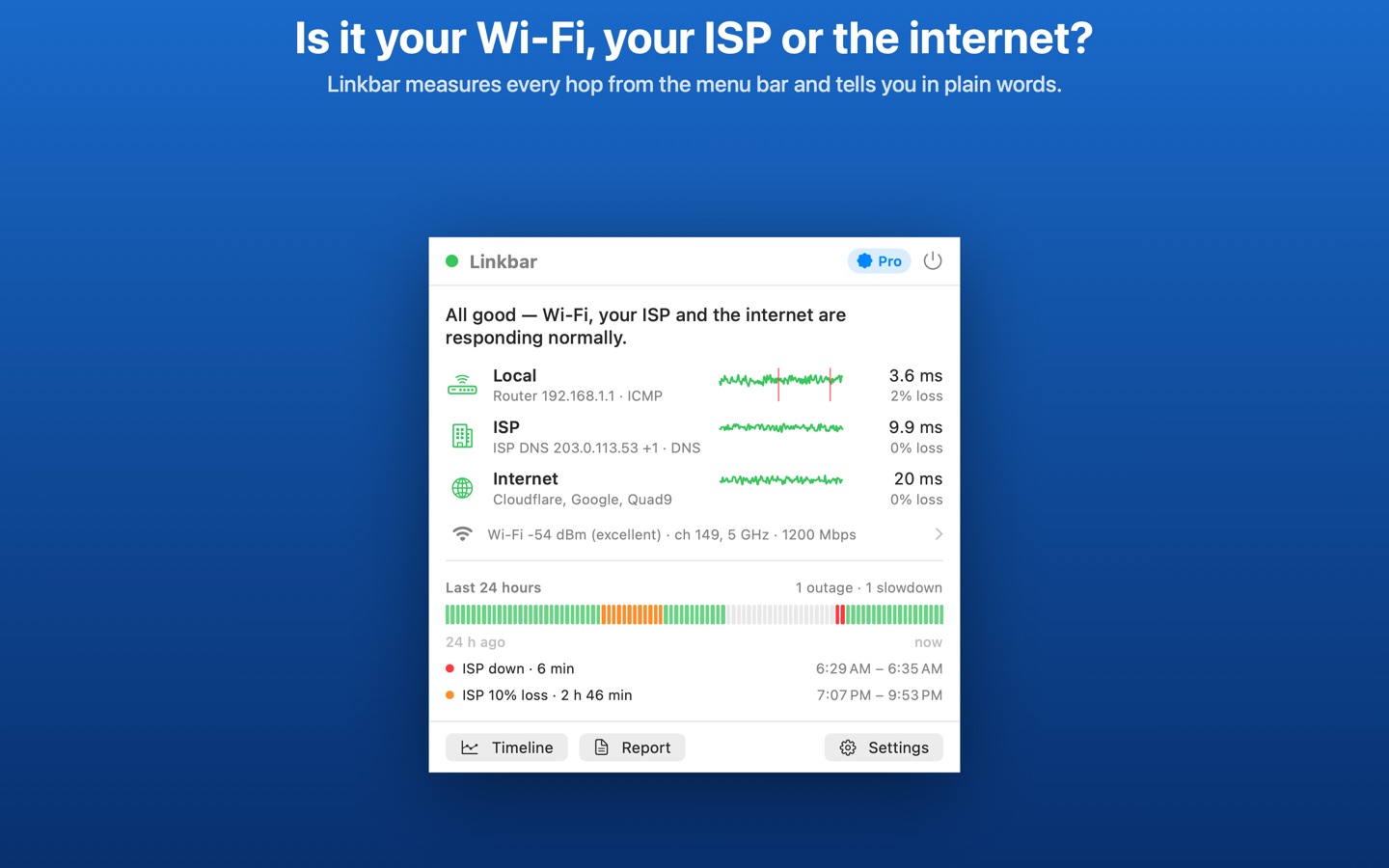
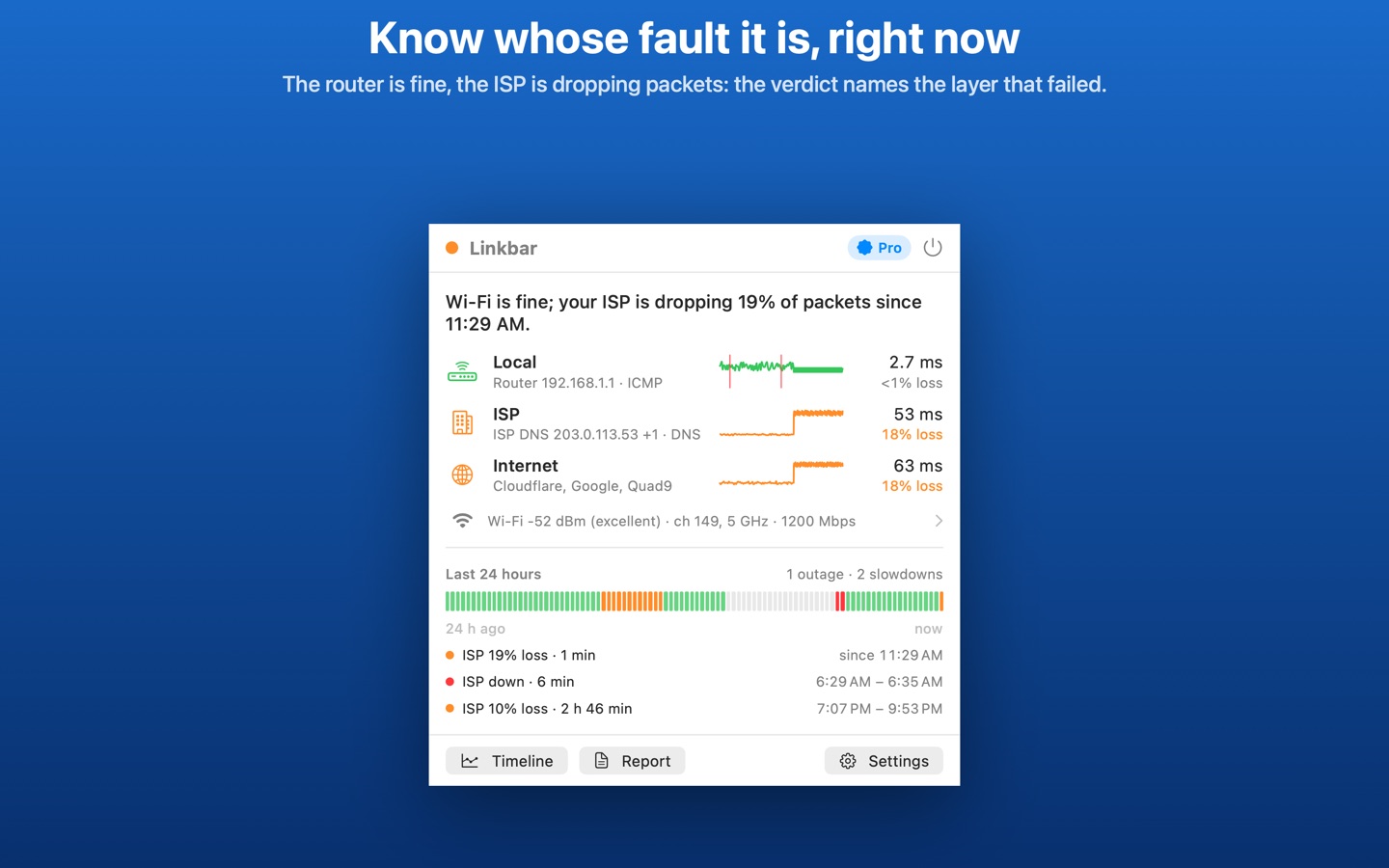
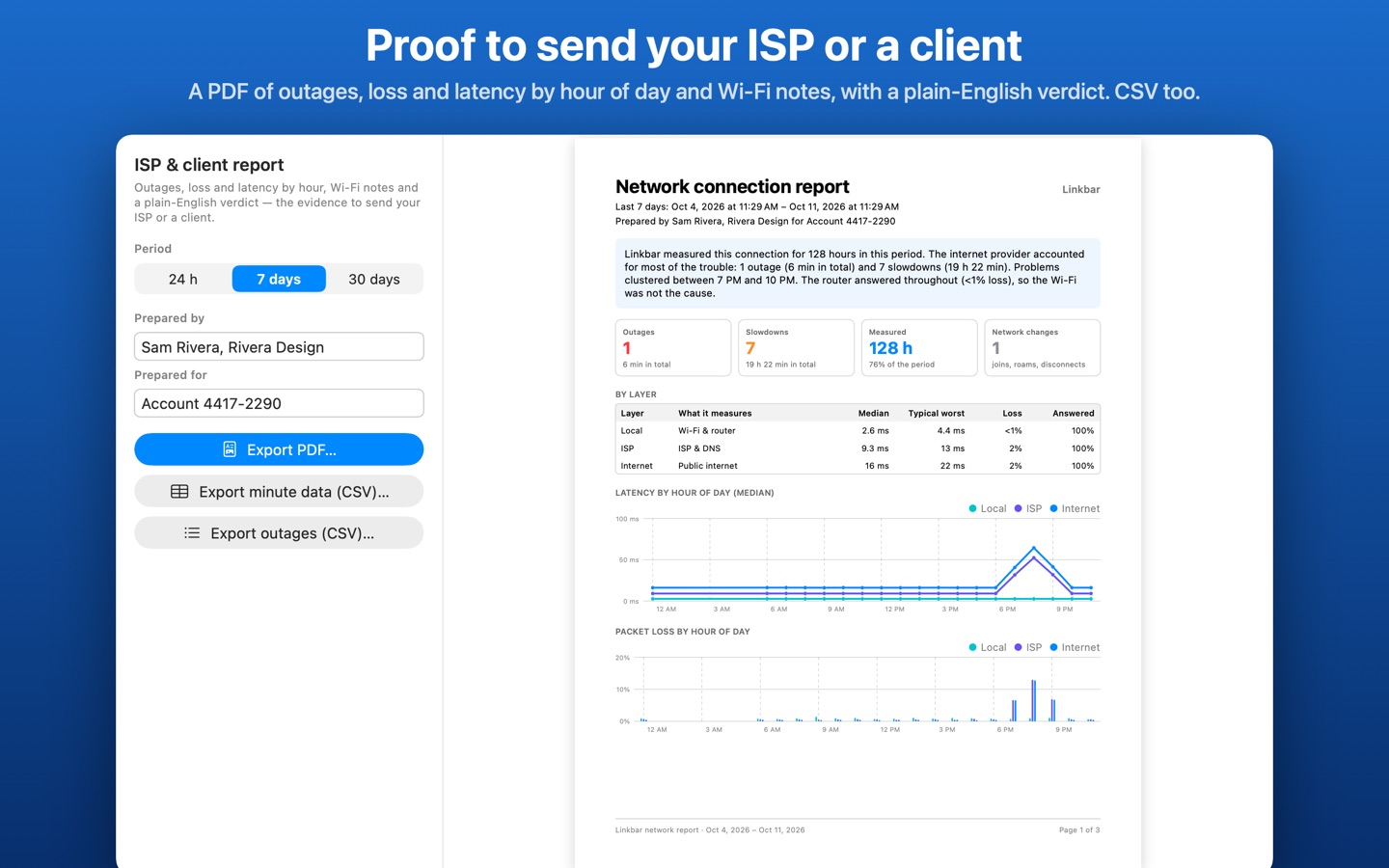
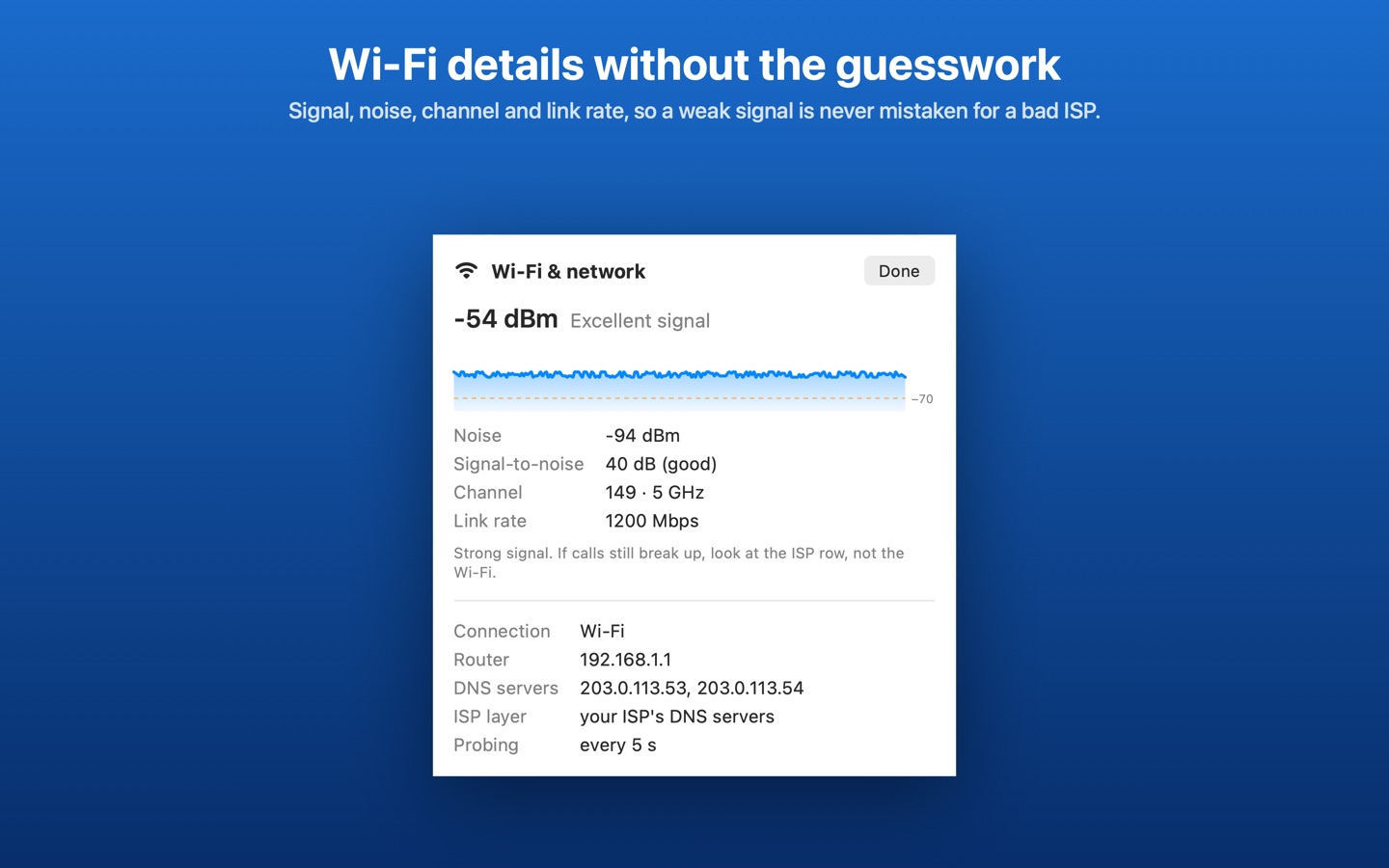
When a video call freezes, it's rarely obvious whose fault it is. Linkbar sits in your Mac's menu bar and checks every hop separately, every few seconds: your router, your internet provider's DNS servers, and three public internet addresses. Then it tells you in plain words where the problem is: "Wi-Fi is fine; your ISP dropped 14% of packets between 7:02 and 7:19 PM."
It keeps a timeline of every outage and slowdown with the layer that failed, and turns it into a PDF report you can send your ISP or a client. Built for people working from home, IT firms diagnosing a client's office, and anyone who wants a glanceable link-health light.
- A green, amber or red dot in the menu bar; red only for a real outage, never for one lost packet
- Live latency, packet loss and a sparkline for the router, the ISP and the internet
- A plain-English verdict that names the layer at fault, and a last-24-hours strip
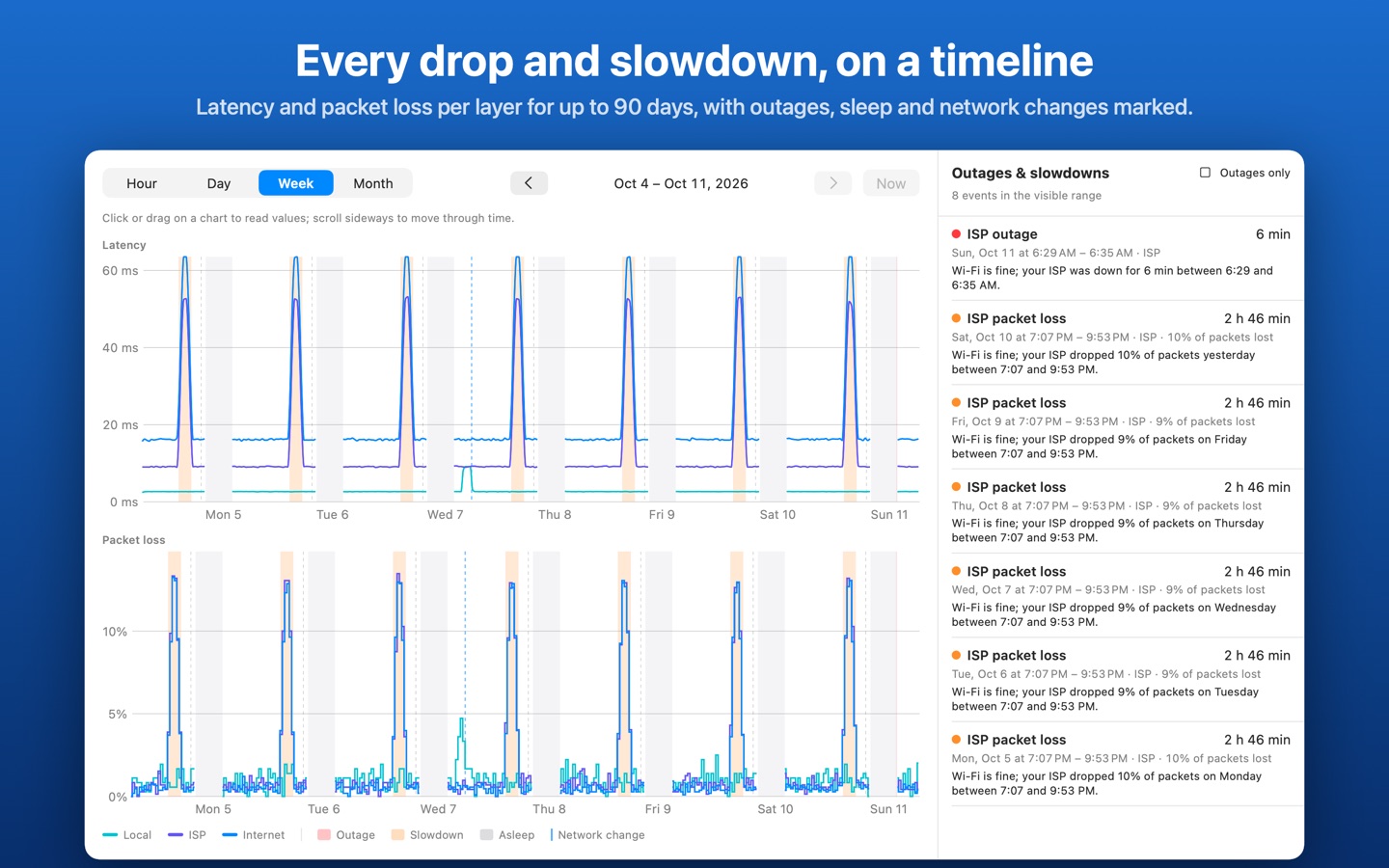
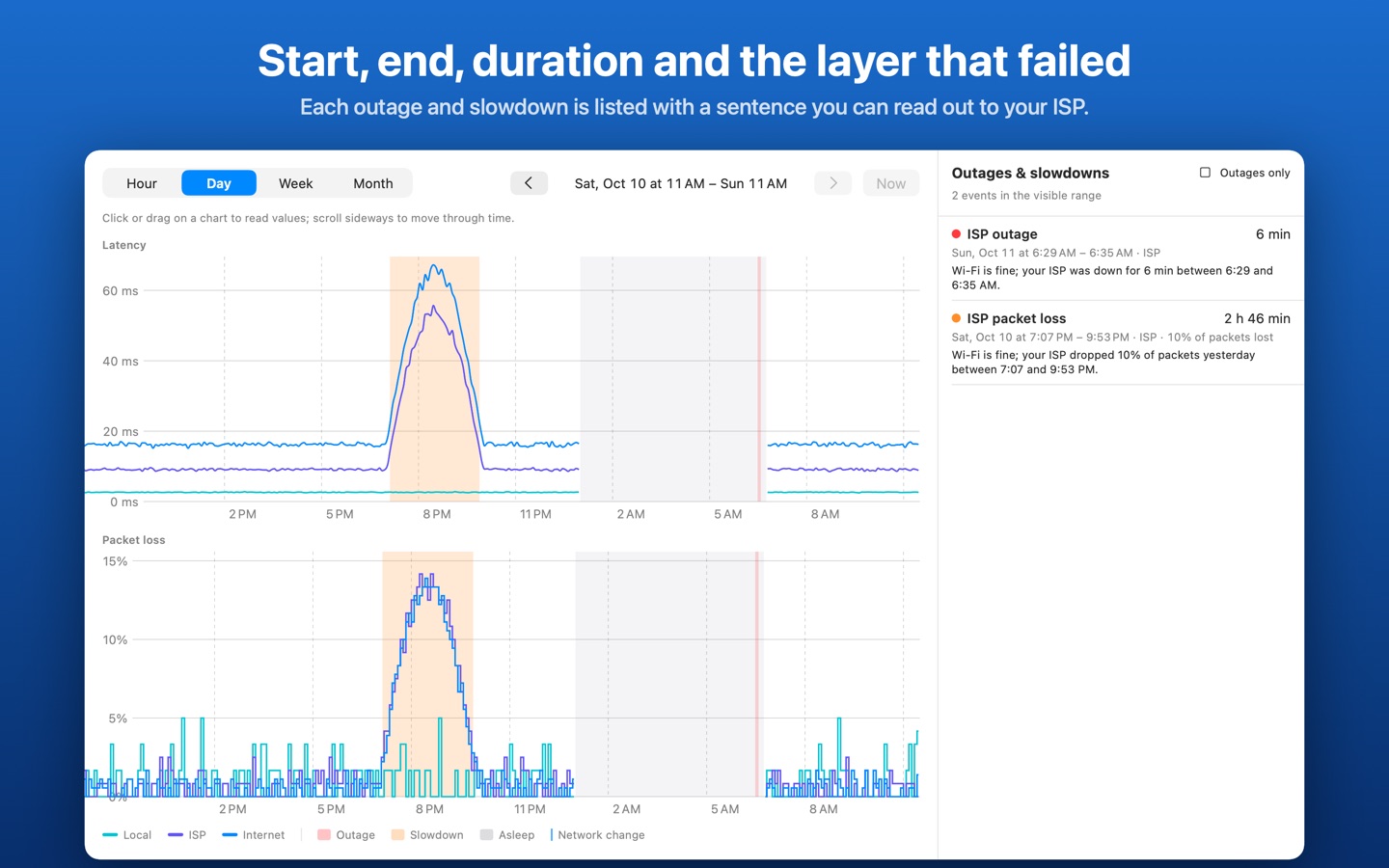
- Timeline (hour, day, week, month) with outage, slowdown, sleep and network-change markers, and an outage log beside it
- Wi-Fi signal, noise, channel and link rate recorded alongside, so a weak signal is never blamed on the ISP
- Sleep, wake and switching networks are boundaries, never outages; a dropped Wi-Fi link counts as a local outage
- Pro: notifications for outages, recoveries (“back up after 4 min”) and sustained slowdowns
- Pro: 90 days of history, PDF and CSV reports with your name or company, custom targets, and separate history per location
- Everything stays on your Mac. No account, no server, no analytics.
Free for live status, the last 24 hours and today's outages. Linkbar Pro is $3.99/month or $29.99/year with a two-week free trial, or $59.99 once for Lifetime.
Getting started
Open Linkbar and click Continue on the welcome window. macOS then asks whether Linkbar may find devices on your local network: click Allow. Linkbar only times replies from your router; that's how it tells a Wi-Fi problem from an ISP problem. If you said no, turn it on later in System Settings → Privacy & Security → Local Network.
Want to see what a week of history looks like before you have one? Turn on Settings → General → Show sample data. Your real measurements are kept separately and come back when you turn it off.
Common questions
- Is this a speed test?
- No. Speed tests measure bandwidth for a few seconds. Linkbar measures reachability, latency and packet loss continuously, which is what breaks calls and games, and keeps the history.
- My router answers DNS itself. What does the ISP row measure?
- Linkbar asks the router which resolver it forwards to and measures that if it answers. If it can't find one, the row is labelled “ISP (via public DNS)” so it's never presented as your provider's own server.
- How does Linkbar tell my networks apart without Location access?
- By the router's hardware address, which macOS shares without Location permission. Linkbar never reads Wi-Fi names.
Support
Please include your macOS version, and for measurement questions a PDF or CSV export of the period in question.